> ## Documentation Index
> Fetch the complete documentation index at: https://docs.cdhyzxwl.cn/llms.txt
> Use this file to discover all available pages before exploring further.

# OpenCode

> 在终端中配置 Teio API 使用 OpenCode

> OpenCode 是一个开源的 AI 编码代理。它提供终端界面、桌面应用和 IDE 扩展等多种使用方式。

## 前置条件

* 已 [创建 API 密钥](/create-token)
* 如果通过 NPM 安装，需要已安装 Node.js 18+

## 安装 OpenCode

<Tabs>
  <Tab title="macOS">
    一键安装（推荐）：

    ```bash theme={null}
    curl -fsSL https://opencode.ai/install | bash
    ```

    或通过 Homebrew：

    ```bash theme={null}
    brew install anomalyco/tap/opencode
    ```

    或通过 NPM：

    ```bash theme={null}
    npm install -g opencode-ai
    ```
  </Tab>

  <Tab title="Windows">
    通过 NPM：

    ```bash theme={null}
    npm install -g opencode-ai
    ```
  </Tab>
</Tabs>

## 配置

推荐使用 CC Switch 配置

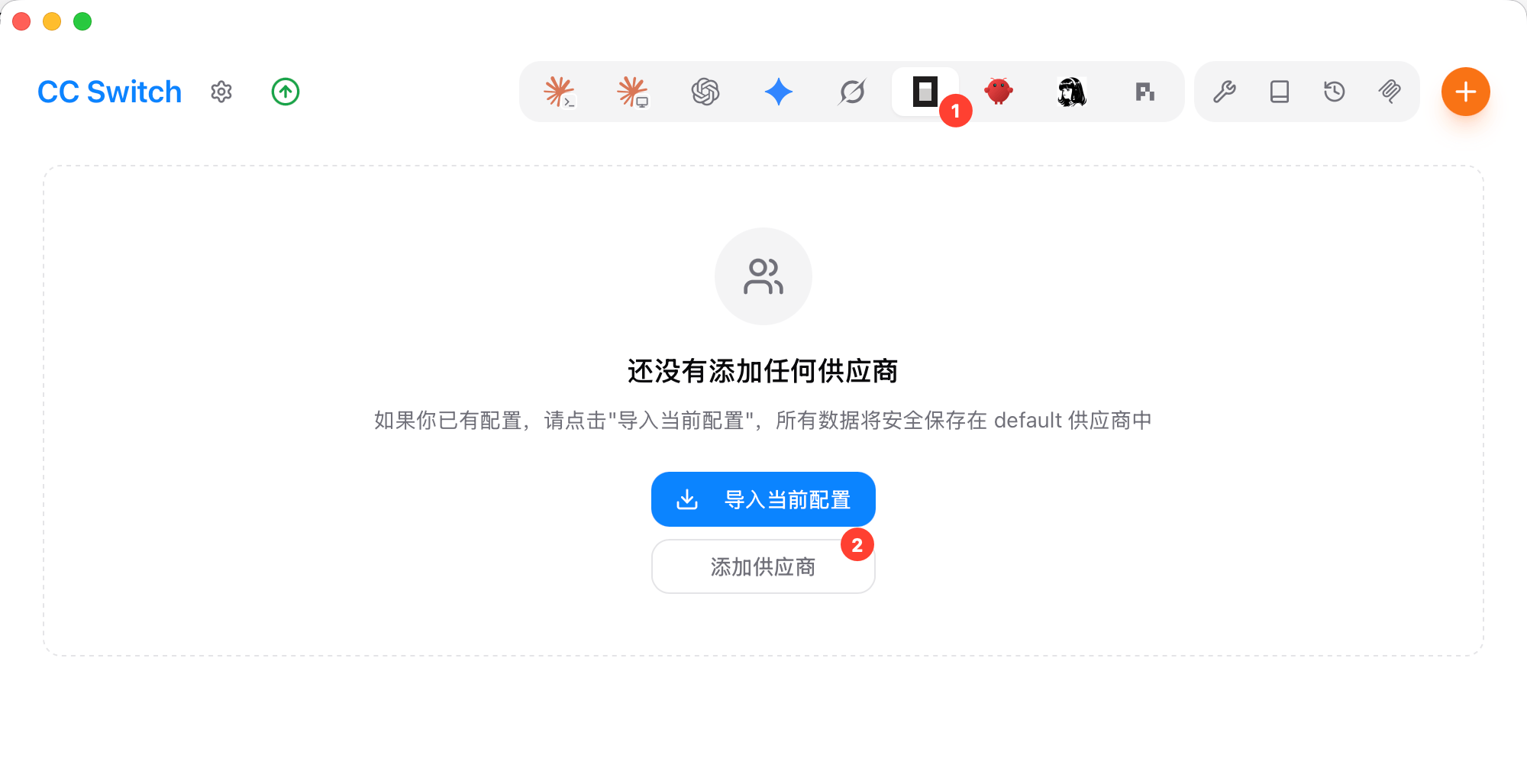
1. 先安装并启动 [CC Switch](/cc-switch)。
2. 添加供应商
   <img src="https://mintcdn.com/cdhyzxwl/ez_brAi3M_gtyMCZ/images/Screenshot-2026-09-07-at-22-50-37-1.png?fit=max&auto=format&n=ez_brAi3M_gtyMCZ&q=85&s=06cd4af3c0e2b9aa356e4f14ea6c59ef" alt="Screenshot 2026 09 07 At 22 50 37" width="2000" height="1027" data-path="images/Screenshot-2026-09-07-at-22-50-37-1.png" />
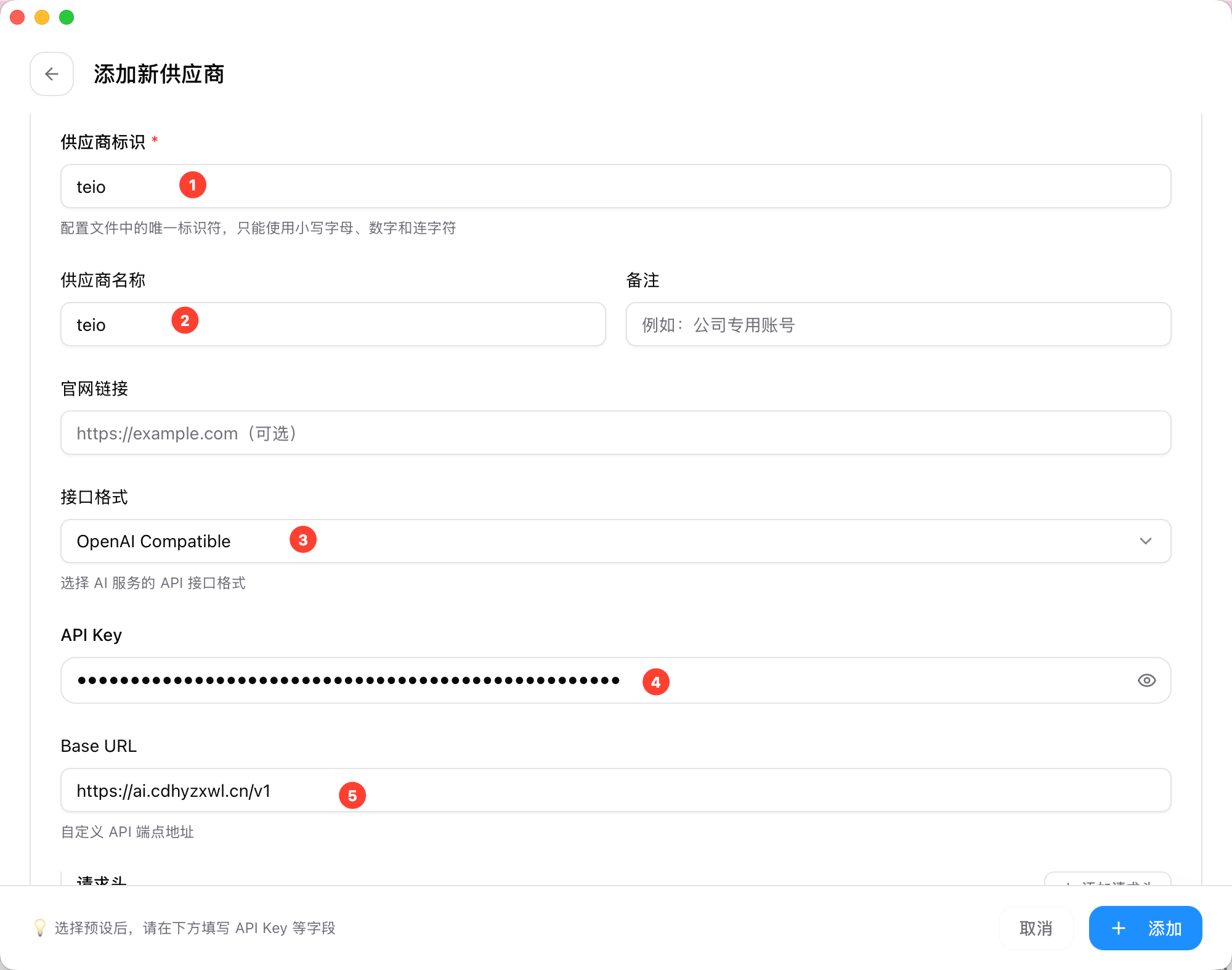
3. 预设供应商 选择自定义配置，并按图填写对应信息
   <img src="https://mintcdn.com/cdhyzxwl/ez_brAi3M_gtyMCZ/images/Screenshot-2026-09-07-at-22-52-54.png?fit=max&auto=format&n=ez_brAi3M_gtyMCZ&q=85&s=7a028b47b25cb45fb0465f0f10f55464" alt="Screenshot 2026 09 07 At 22 52 54" width="2000" height="1574" data-path="images/Screenshot-2026-09-07-at-22-52-54.png" />
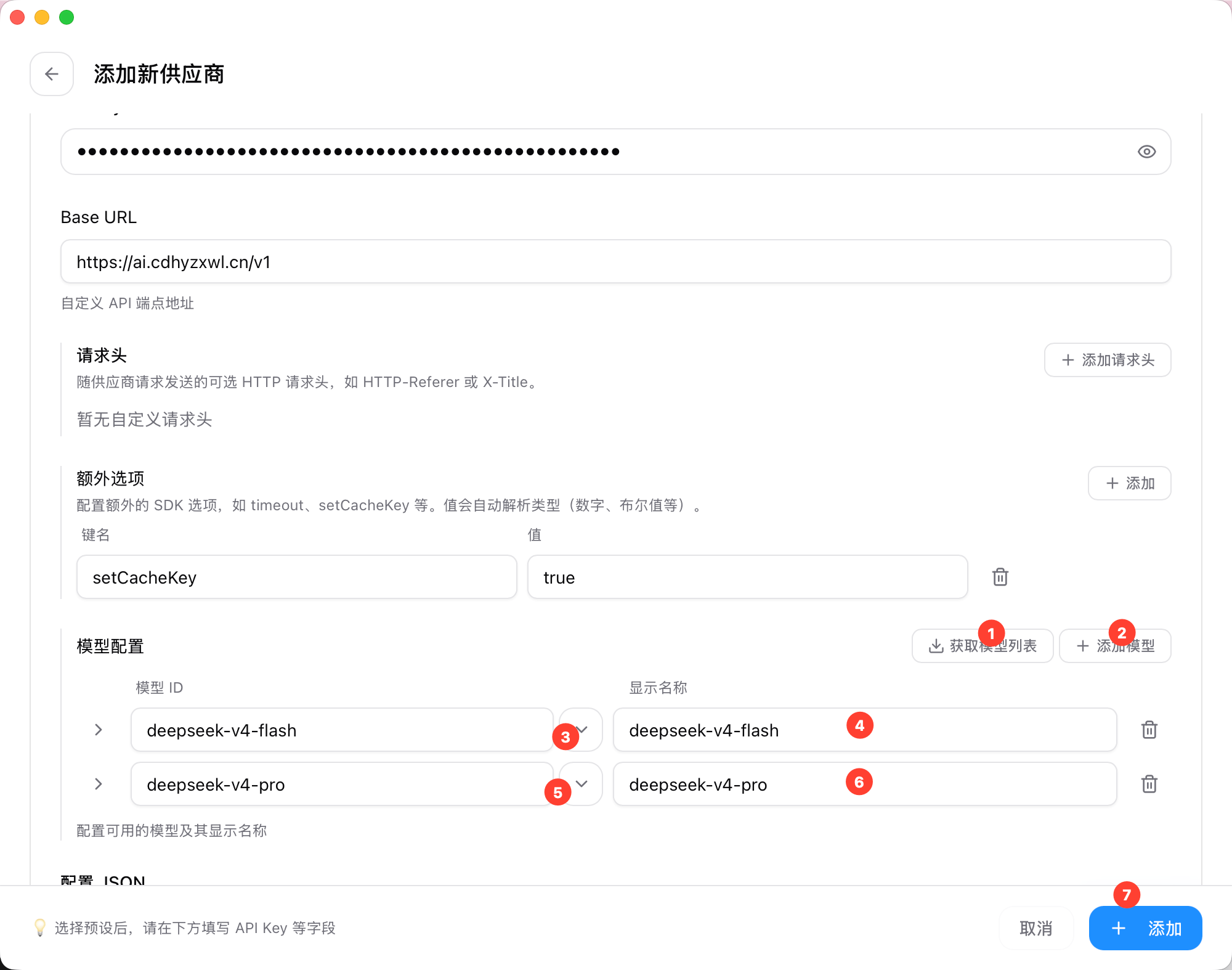
4. 获取模型列表，并添加模型，最后点击添加
   <img src="https://mintcdn.com/cdhyzxwl/ez_brAi3M_gtyMCZ/images/Screenshot-2026-09-07-at-22-54-07.png?fit=max&auto=format&n=ez_brAi3M_gtyMCZ&q=85&s=c4a65deb4eda2dc39f439275c3e4add0" alt="Screenshot 2026 09 07 At 22 54 07" width="2000" height="1574" data-path="images/Screenshot-2026-09-07-at-22-54-07.png" />
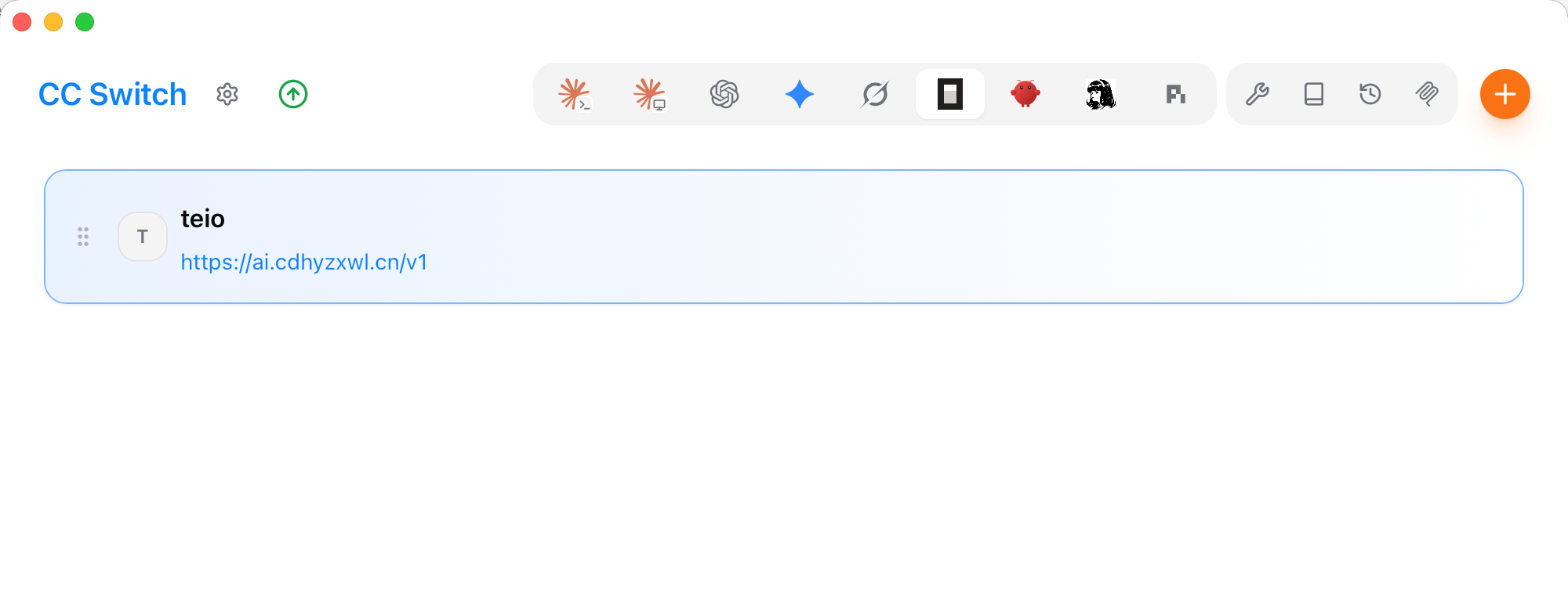
5. 这里就完成配置
   <img src="https://mintcdn.com/cdhyzxwl/ez_brAi3M_gtyMCZ/images/Screenshot-2026-09-07-at-22-55-05.png?fit=max&auto=format&n=ez_brAi3M_gtyMCZ&q=85&s=3169b1c0b6f277a707789c7779897f78" alt="Screenshot 2026 09 07 At 22 55 05" width="2000" height="753" data-path="images/Screenshot-2026-09-07-at-22-55-05.png" />

## 启动

<Note>
  如果你刚完成上述配置，请先重启终端，确保配置文件已被加载。
</Note>

```bash theme={null}
opencode
```

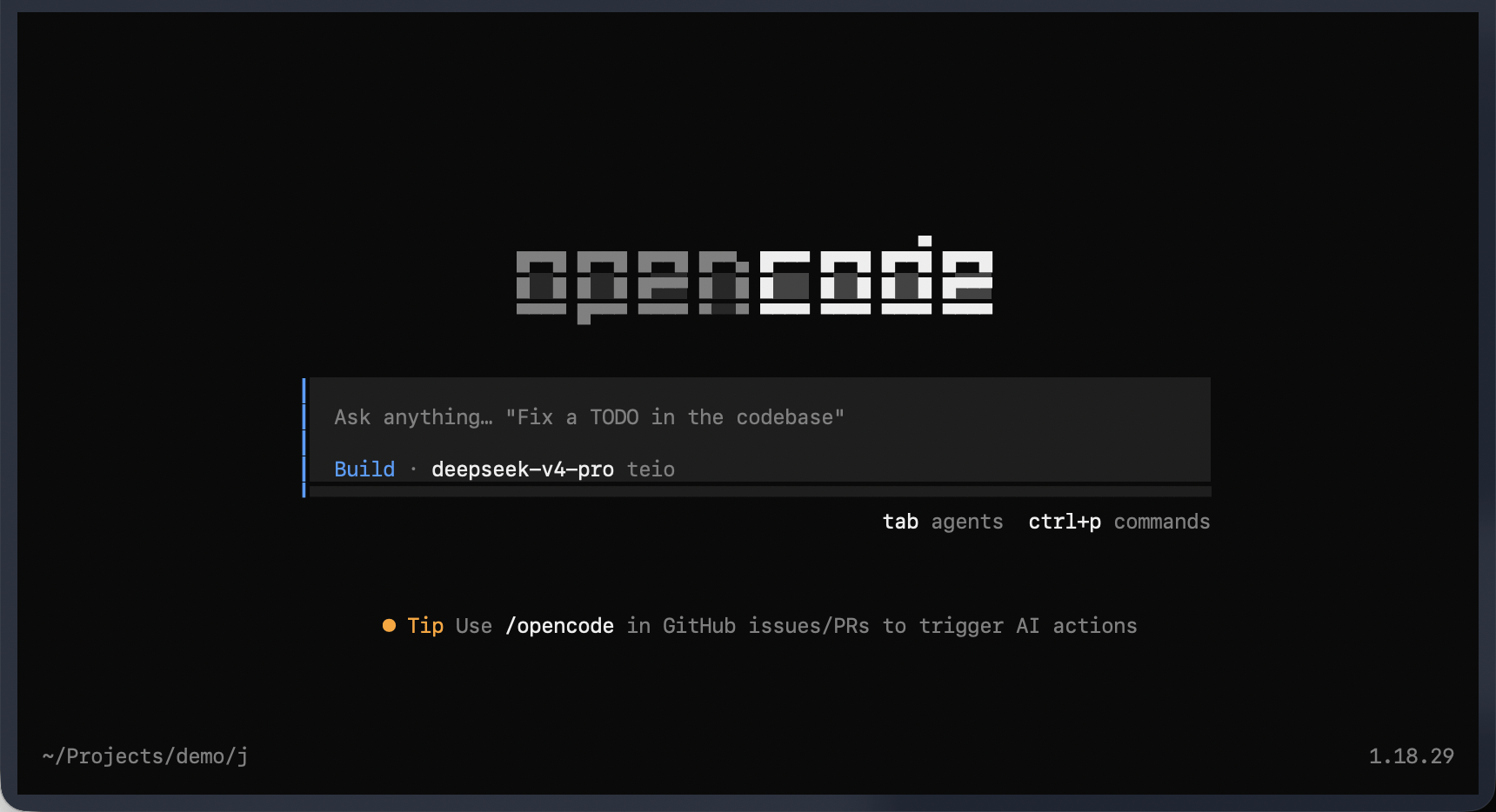
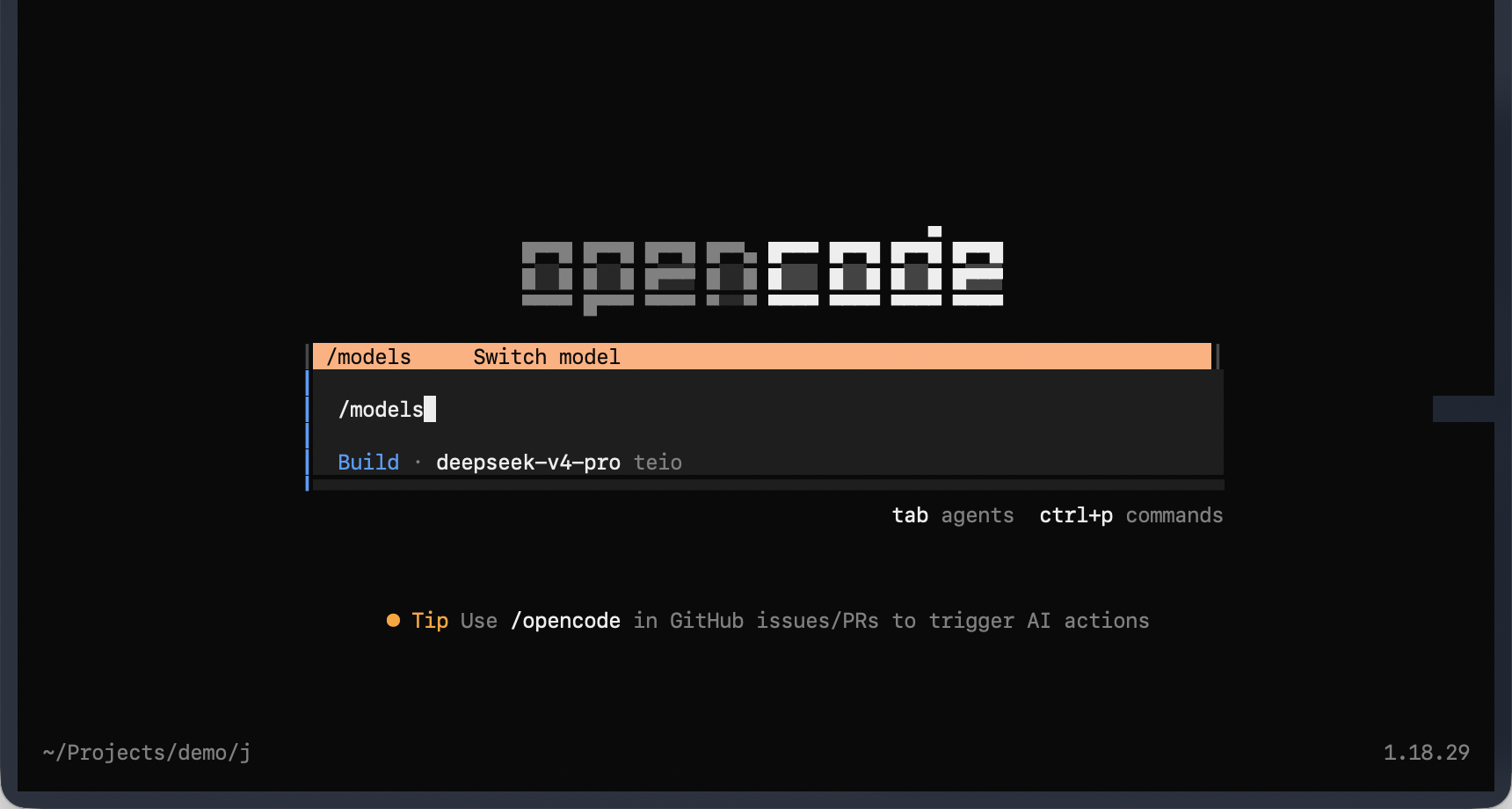
如果配置正确，你会进入 OpenCode 的交互界面。

<Frame>
  <img src="https://mintcdn.com/cdhyzxwl/ez_brAi3M_gtyMCZ/images/Screenshot-2026-09-07-at-22-58-05.png?fit=max&auto=format&n=ez_brAi3M_gtyMCZ&q=85&s=b7435c3ed82d1cc3db6784fadb8f16b8" alt="Screenshot 2026 09 07 At 22 58 05" width="1720" height="934" data-path="images/Screenshot-2026-09-07-at-22-58-05.png" />
</Frame>

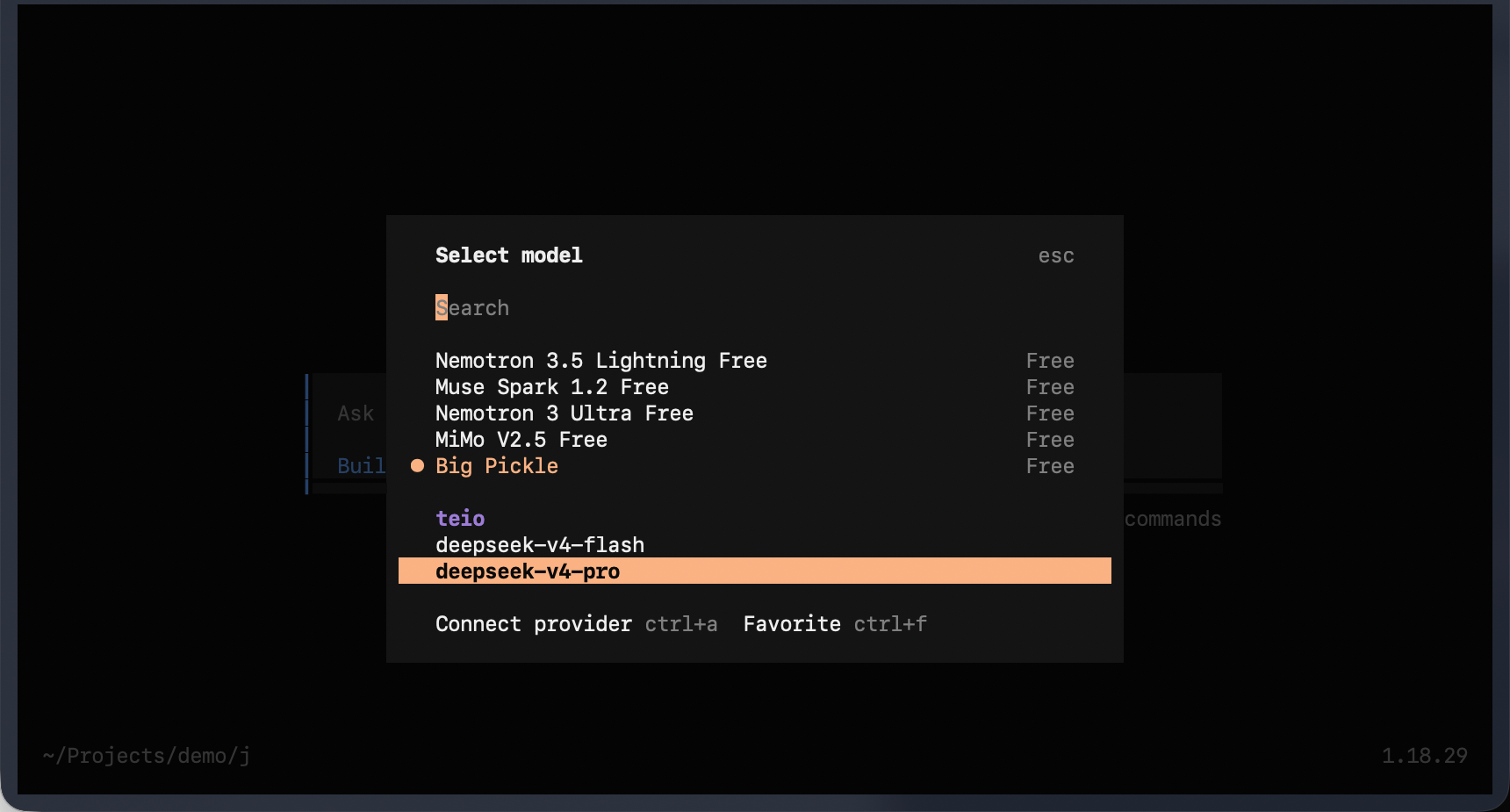
启动后可以通过 /models 命令切换到的模型。

<Frame>
  <img src="https://mintcdn.com/cdhyzxwl/ez_brAi3M_gtyMCZ/images/Screenshot-2026-09-07-at-22-58-26.png?fit=max&auto=format&n=ez_brAi3M_gtyMCZ&q=85&s=4c1531c7d3265cff2df84c1018d3ff15" alt="Screenshot 2026 09 07 At 22 58 26" width="1720" height="920" data-path="images/Screenshot-2026-09-07-at-22-58-26.png" />
</Frame>

根据需求选择对应的模型

<Frame>
  <img src="https://mintcdn.com/cdhyzxwl/ez_brAi3M_gtyMCZ/images/Screenshot-2026-09-07-at-22-56-15.png?fit=max&auto=format&n=ez_brAi3M_gtyMCZ&q=85&s=9fbb64881cc86f694793e8a3cd78868f" alt="Screenshot 2026 09 07 At 22 56 15" width="1720" height="925" data-path="images/Screenshot-2026-09-07-at-22-56-15.png" />
</Frame>

## 常见问题

<AccordionGroup>
  <Accordion title="提示模型不存在或 model not found">
    <Frame>
      <img src="https://mintcdn.com/cdhyzxwl/6tLCIfichwMPh1V0/images/macshot-clipboard-8A37AE2F-D5D8-46AE-A9D4-9AEB676DFAA1.png?fit=max&auto=format&n=6tLCIfichwMPh1V0&q=85&s=8ec374bd746df10de89fa950c54008f9" alt="Macshot Clipboard 8A37AE2F D5D8 46AE A9D4 9AEB676DFAA1" width="1692" height="998" data-path="images/macshot-clipboard-8A37AE2F-D5D8-46AE-A9D4-9AEB676DFAA1.png" />
    </Frame>

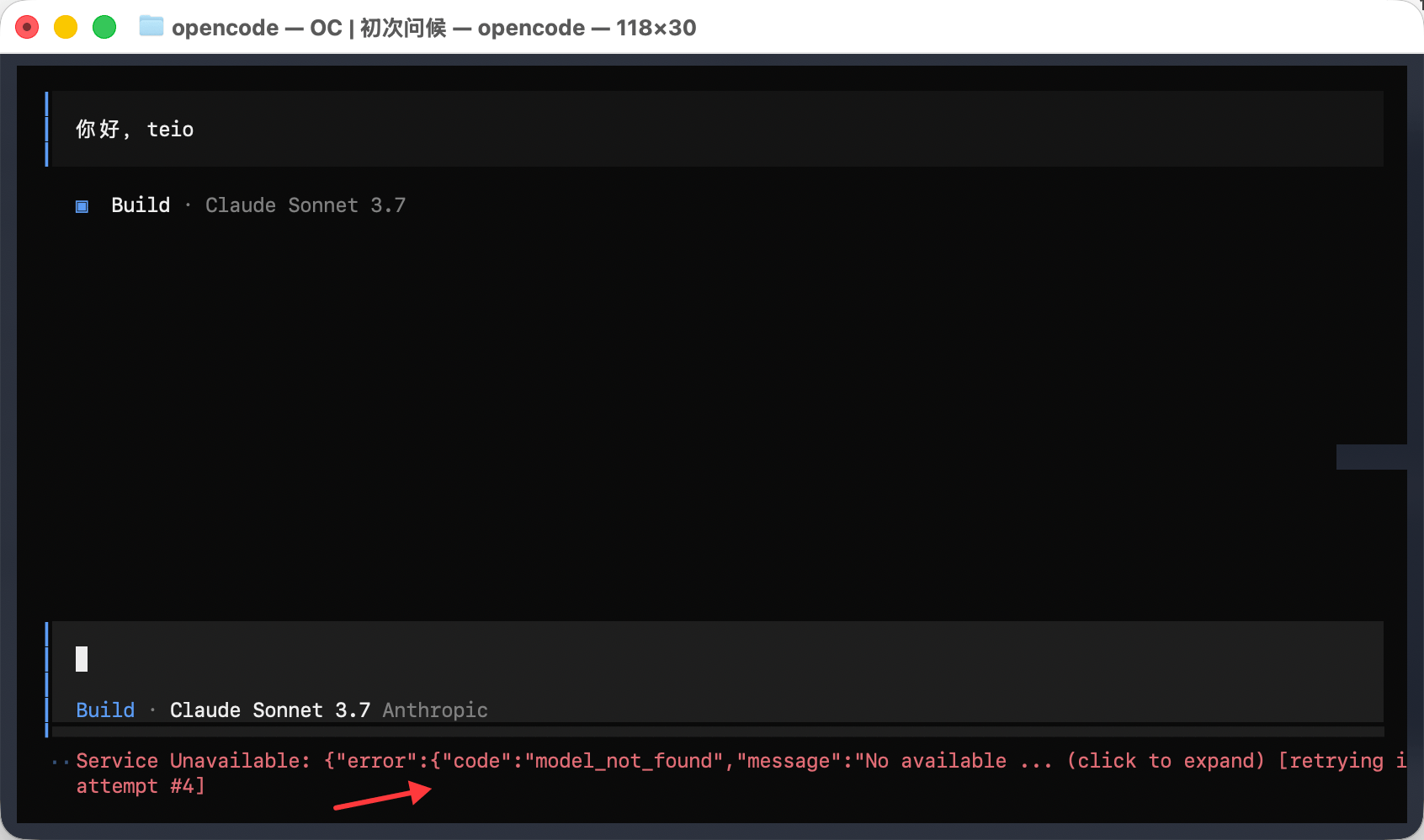
    由于 OpenAI 和 Anthropic 官方列举了所有模型，但个别模型 Teio 暂不支持。建议在 Teio 控制台的「操练场」中，选择对应分组查看当前可用的模型列表，确认你要使用的模型已被支持后再进行配置
  </Accordion>
</AccordionGroup>

遇到问题？请参考 [常见问题](/faq)。