> ## Documentation Index
> Fetch the complete documentation index at: https://docs.teio.me/llms.txt
> Use this file to discover all available pages before exploring further.

# Cherry Studio

> Cherry Studio 是一款集多模型对话、知识库管理、AI 绘画和翻译等功能于一体的全能 AI 助手平台。<br />它拥有高度可定制的设计、强大的扩展能力和友好的用户体验，适合专业用户和 AI 爱好者使用。无论是零基础用户还是开发者，都能在 Cherry Studio 中找到适合自己的 AI 工具，提升工作效率和创造力。 [查看更多](https://docs.cherry-ai.com/)

## 下载 Cherry Studio

[下载 Cherry Studio](https://www.cherry-ai.com/download)

下载后按提示完成安装即可。

## 配置 Cherry Studio

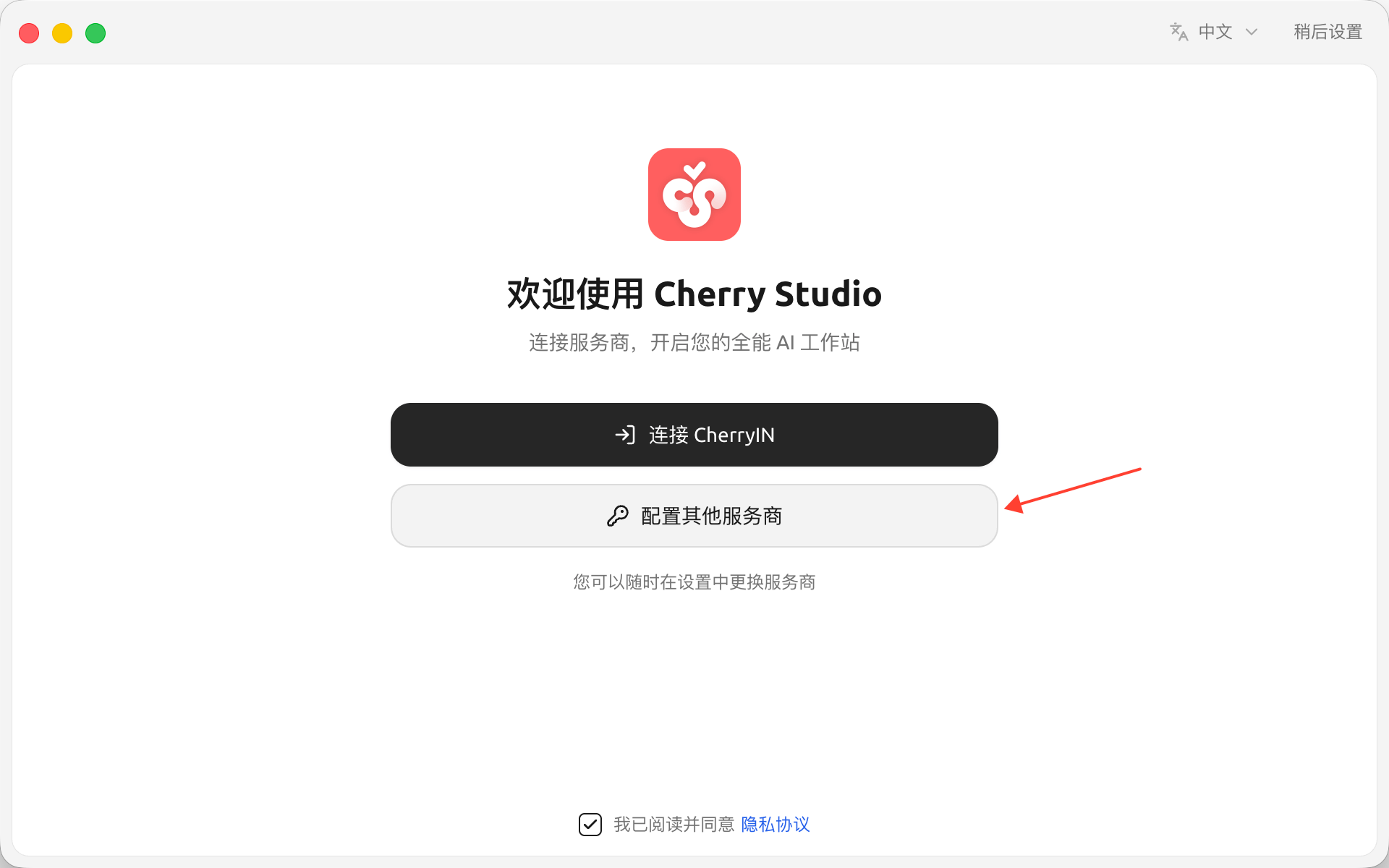
1. 打开 Cherry Studio，点击「其他供应商」。
   <Frame>
     <img src="https://mintcdn.com/cdhyzxwl/3MyDbH4N1MUqovZN/images/Screenshot-2026-08-23-at-11-52-02.png?fit=max&auto=format&n=3MyDbH4N1MUqovZN&q=85&s=8cd3dd03891c21ced7c017e8b7737041" alt="Screenshot 2026 08 23 At 11 52 02" width="1920" height="1200" data-path="images/Screenshot-2026-08-23-at-11-52-02.png" />
   </Frame>
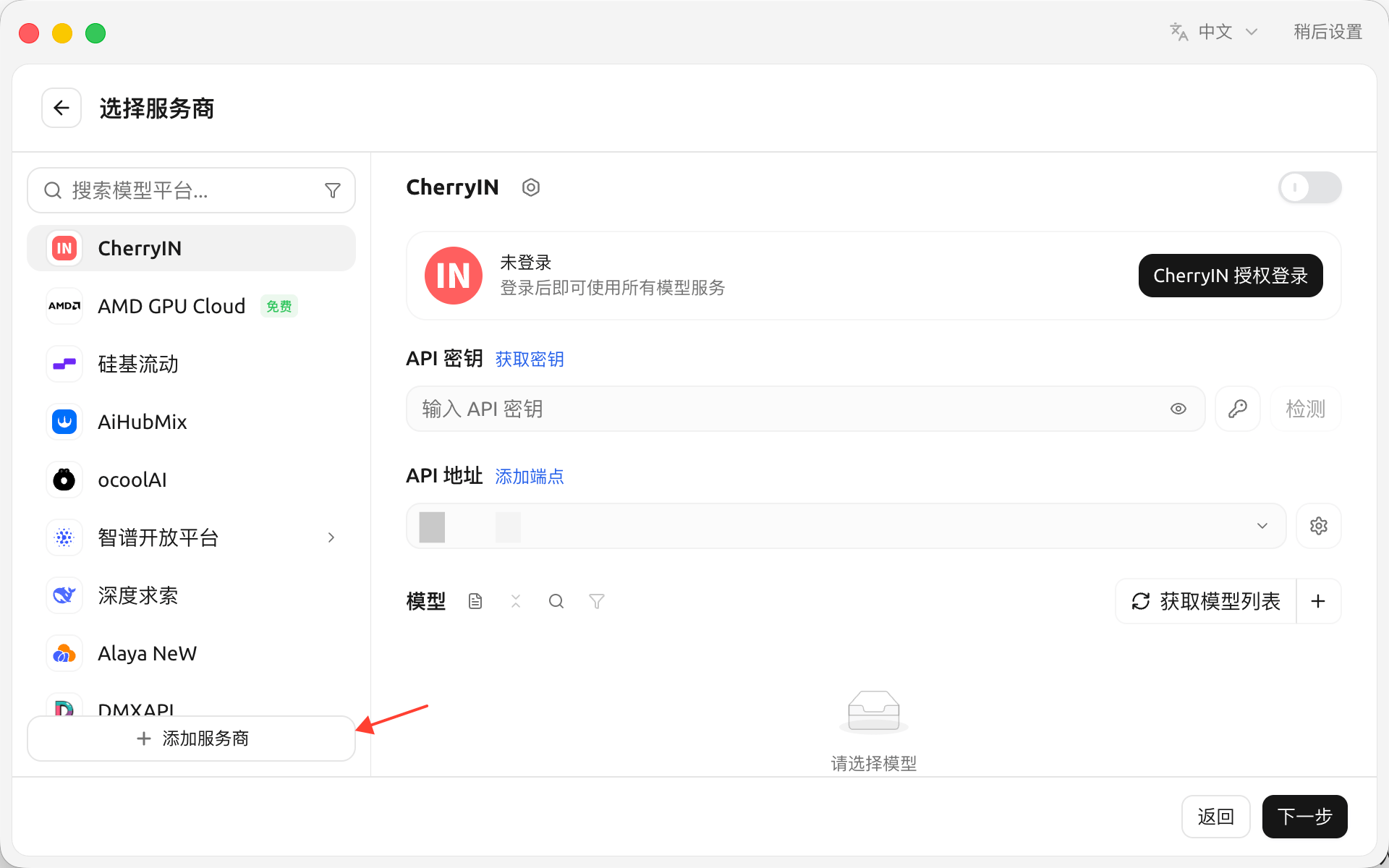
2. 点击「添加服务商」。
   <Frame>
     <img src="https://mintcdn.com/cdhyzxwl/3MyDbH4N1MUqovZN/images/Screenshot-2026-08-23-at-11-52-43.png?fit=max&auto=format&n=3MyDbH4N1MUqovZN&q=85&s=cf9d0791e2a47ee6ee9f0f92acf416bd" alt="Screenshot 2026 08 23 At 11 52 43" width="1920" height="1200" data-path="images/Screenshot-2026-08-23-at-11-52-43.png" />
   </Frame>
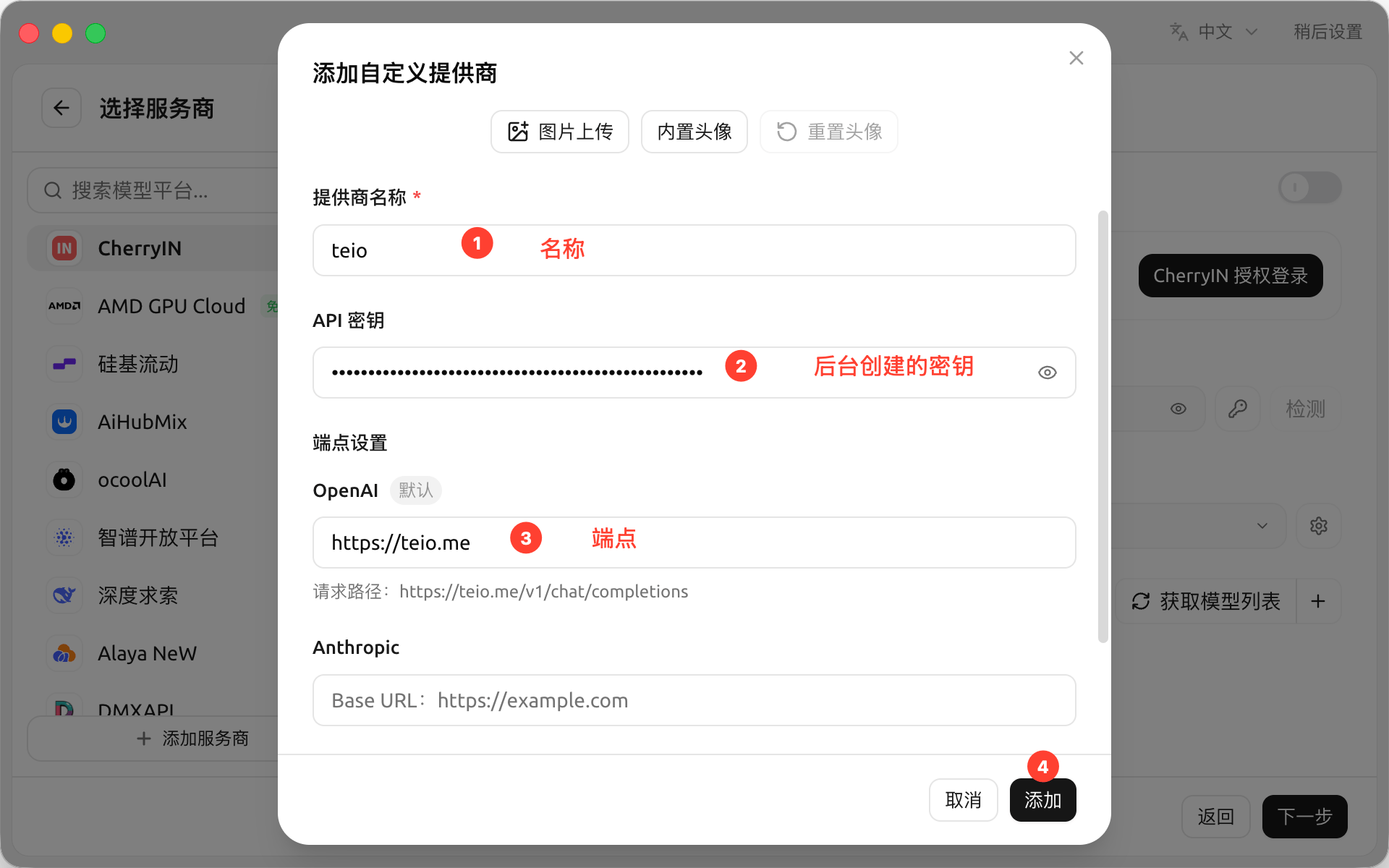
3. 填写服务商名称（可自定义，便于识别），输入 API 密钥，将端点类型设置为 OpenAI，并将端点地址填写为 `https://teio.me`，最后点击「添加」。
   <Frame>
     <img src="https://mintcdn.com/cdhyzxwl/3MyDbH4N1MUqovZN/images/Screenshot-2026-08-23-at-12-11-58.png?fit=max&auto=format&n=3MyDbH4N1MUqovZN&q=85&s=621e14a7c5f8b68bec120c4d26e0291d" alt="Screenshot 2026 08 23 At 12 11 58" width="1920" height="1200" data-path="images/Screenshot-2026-08-23-at-12-11-58.png" />
   </Frame>
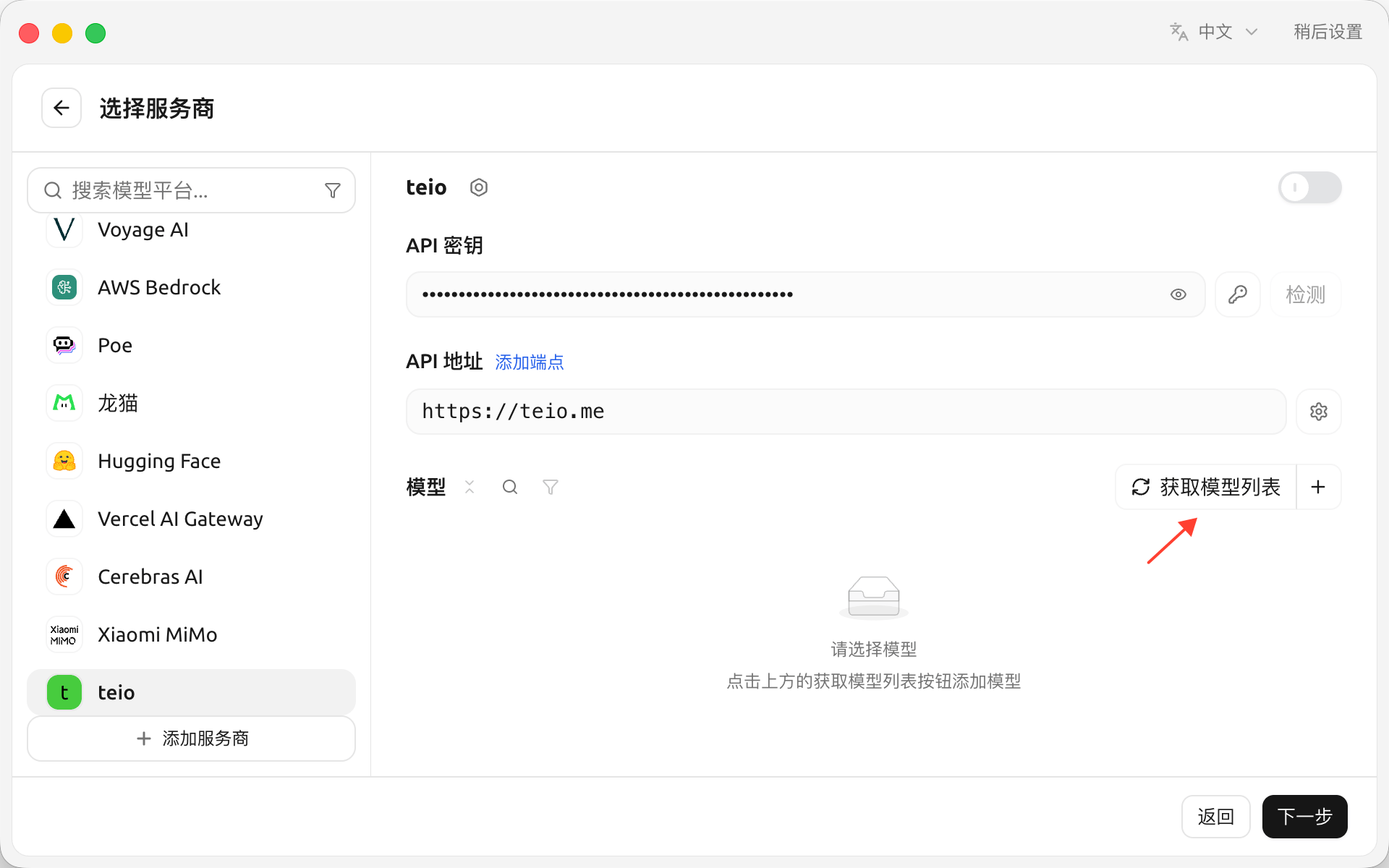
4. 点击「获取模型列表」。
   <Frame>
     <img src="https://mintcdn.com/cdhyzxwl/3MyDbH4N1MUqovZN/images/Screenshot-2026-08-23-at-12-13-27.png?fit=max&auto=format&n=3MyDbH4N1MUqovZN&q=85&s=22aeba89641f63ccc40eda874e407f34" alt="Screenshot 2026 08 23 At 12 13 27" width="1920" height="1200" data-path="images/Screenshot-2026-08-23-at-12-13-27.png" />
   </Frame>
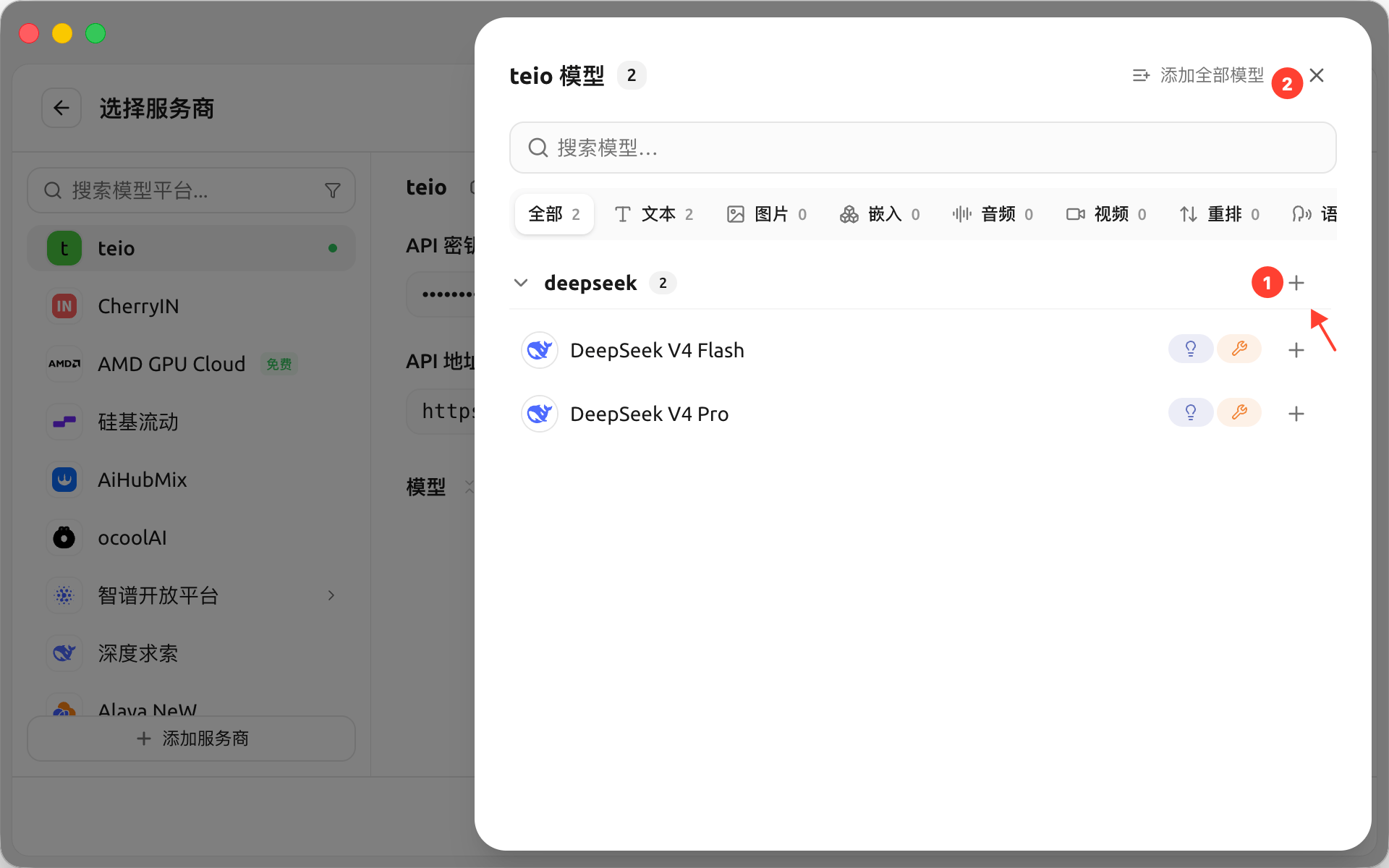
5. 模型列表显示后，点击「全选」并添加模型，然后关闭弹窗。
   <Frame>
     <img src="https://mintcdn.com/cdhyzxwl/3MyDbH4N1MUqovZN/images/Screenshot-2026-08-23-at-12-14-15.png?fit=max&auto=format&n=3MyDbH4N1MUqovZN&q=85&s=0d6f9ee90c4db71a64bbb027e44799b5" alt="Screenshot 2026 08 23 At 12 14 15" width="1920" height="1200" data-path="images/Screenshot-2026-08-23-at-12-14-15.png" />
   </Frame>
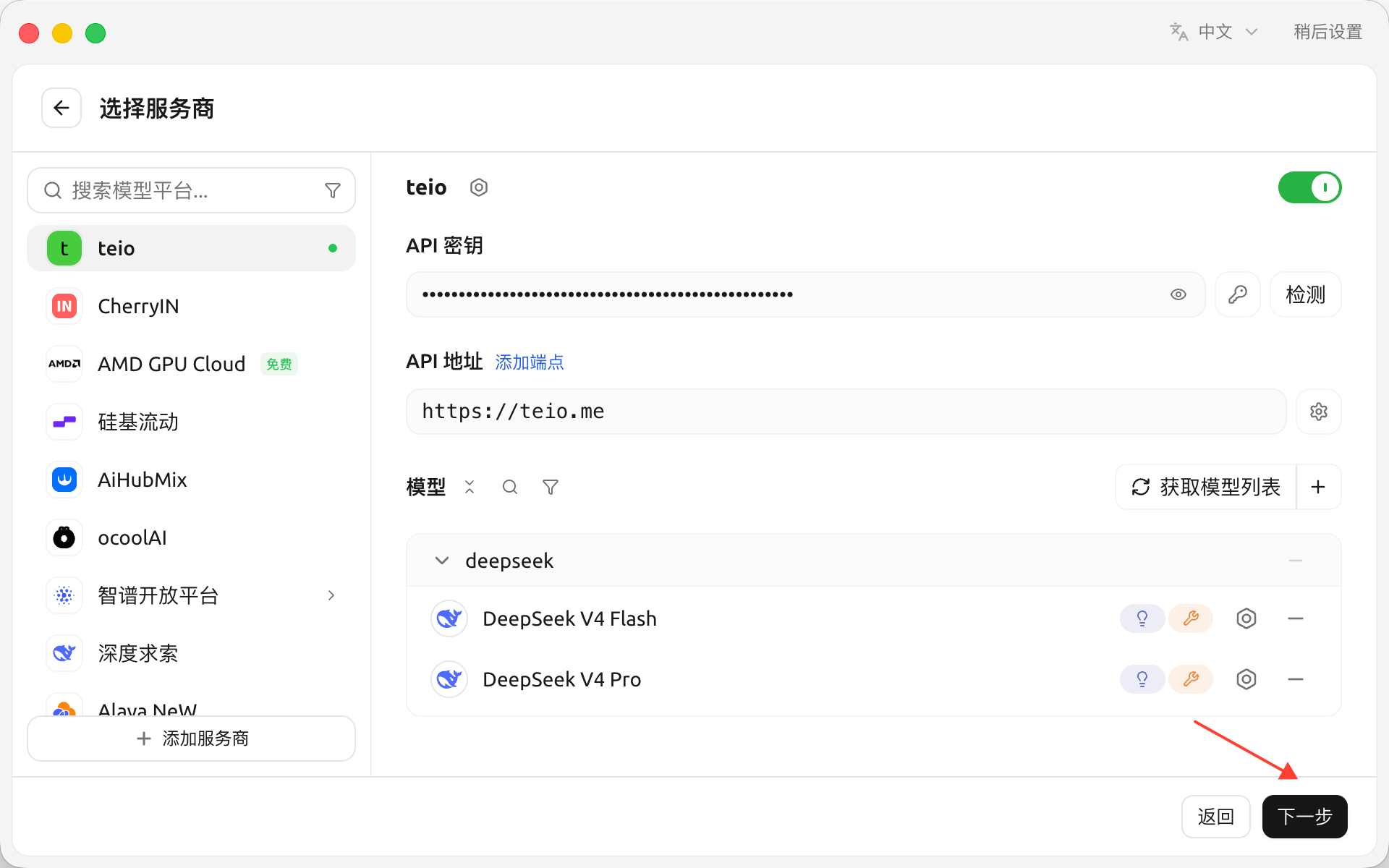
6. 确认模型已成功添加后，点击「下一步」。
   <Frame>
     <img src="https://mintcdn.com/cdhyzxwl/3MyDbH4N1MUqovZN/images/Screenshot-2026-08-23-at-12-14-43.png?fit=max&auto=format&n=3MyDbH4N1MUqovZN&q=85&s=9e8c84af80303cb199d5c2d9295b6e5e" alt="Screenshot 2026 08 23 At 12 14 43" width="1920" height="1200" data-path="images/Screenshot-2026-08-23-at-12-14-43.png" />
   </Frame>
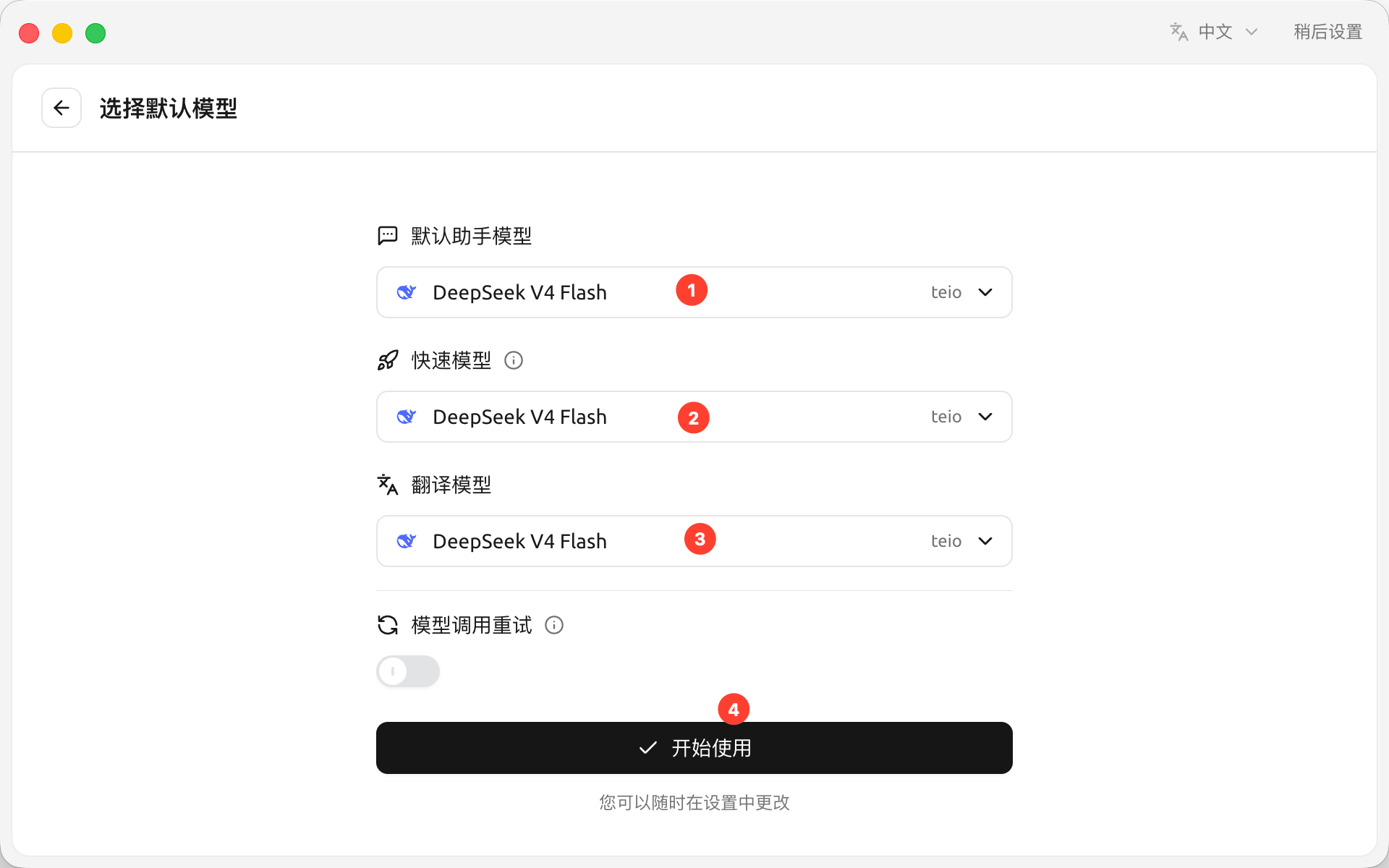
7. 选择默认模型（也可以根据不同用途分别设置），然后点击「开始」。
   <Frame>
     <img src="https://mintcdn.com/cdhyzxwl/3MyDbH4N1MUqovZN/images/Screenshot-2026-08-23-at-12-15-20.png?fit=max&auto=format&n=3MyDbH4N1MUqovZN&q=85&s=fccafb3949bbad6a5f6b4c4f2c055fe9" alt="Screenshot 2026 08 23 At 12 15 20" width="1920" height="1200" data-path="images/Screenshot-2026-08-23-at-12-15-20.png" />
   </Frame>
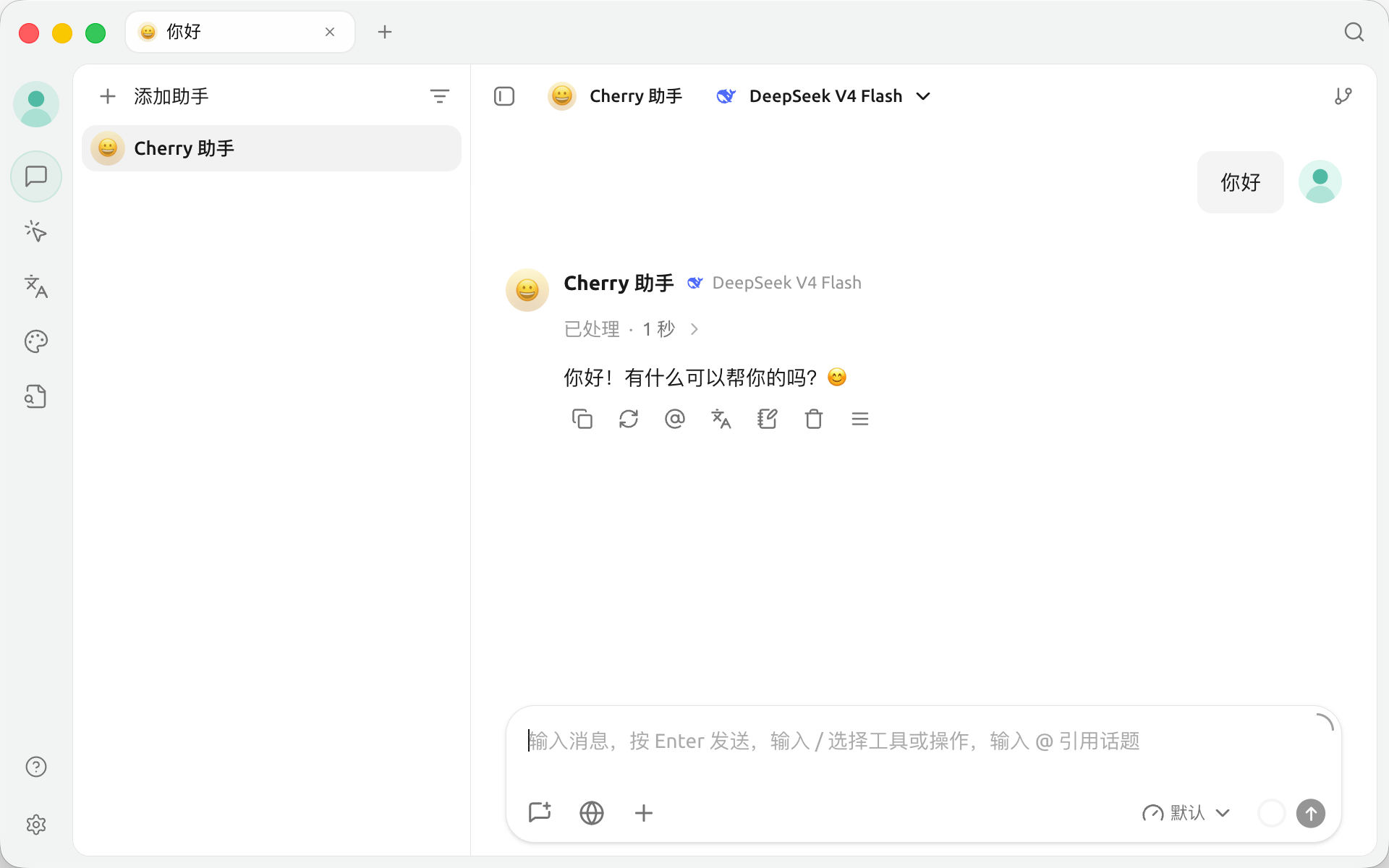
8. 配置完成后，即可开始对话。
   <Frame>
     <img src="https://mintcdn.com/cdhyzxwl/3MyDbH4N1MUqovZN/images/Screenshot-2026-08-23-at-12-15-55.png?fit=max&auto=format&n=3MyDbH4N1MUqovZN&q=85&s=fc1feb0ac58c49211b9091365c1bcb02" alt="Screenshot 2026 08 23 At 12 15 55" width="1920" height="1200" data-path="images/Screenshot-2026-08-23-at-12-15-55.png" />
   </Frame>

更多使用方法请参阅 [官方教程](https://docs.cherry-ai.com/)。